Mockups & Listings
Part of Personalised POD orders
Showing a customer preview for approval before production
Choose a customer preview, explain what approval covers and make sure the approved design reaches production.
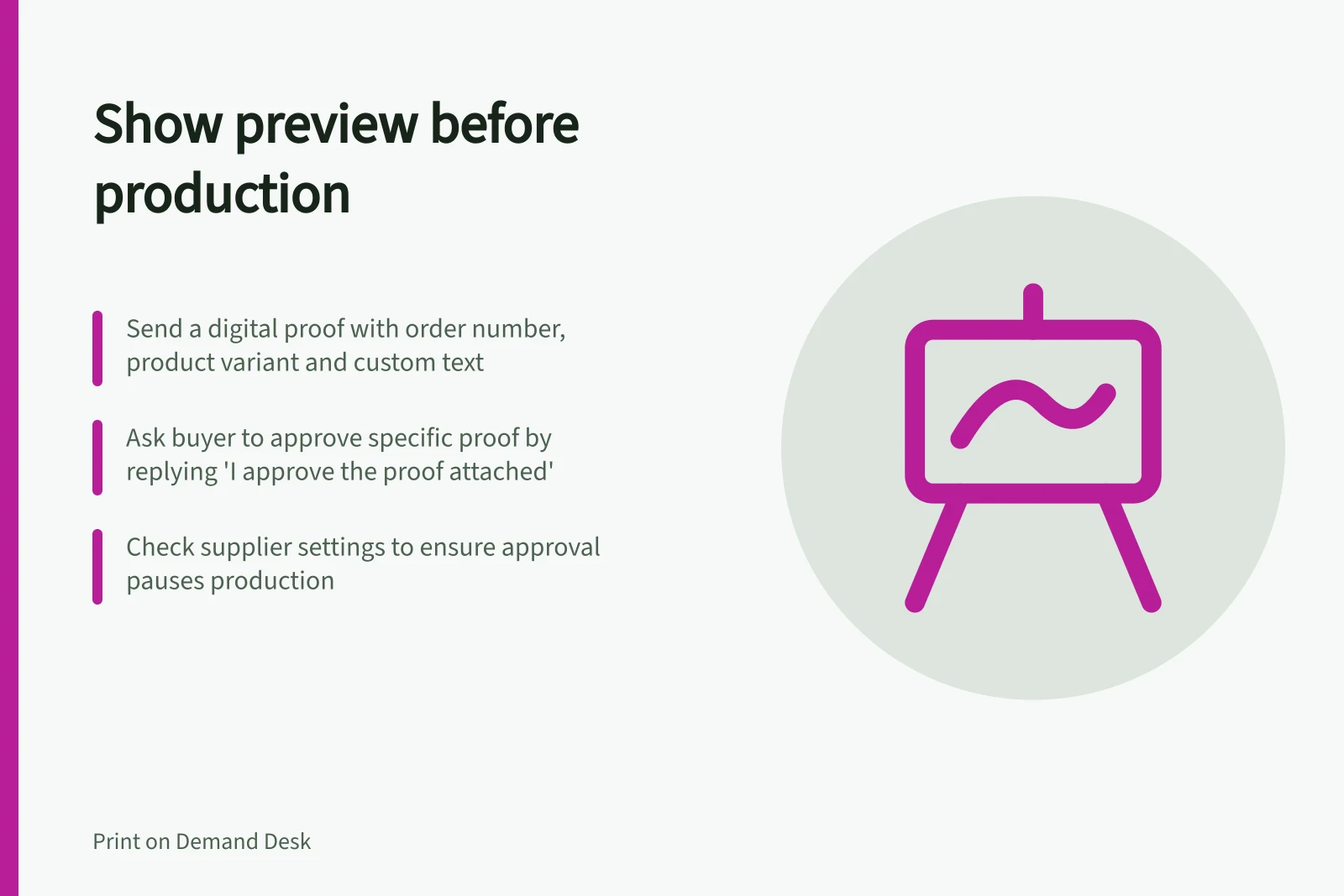
Send the buyer a personalised digital preview of the proposed text and layout while changes are still possible. Explain that it is a digital proof, not a physical sample, and that production will wait for approval of the proof shown.
Choose a preview that fits the order
Printify names Live Preview for Etsy and automated personalisation for Shopify. Check the feature and exact listing before promising what a buyer will see; the feature name alone does not confirm that production is paused for approval.
An interactive preview may suit a fixed design with a simple text field if it shows the personalised result the buyer needs. For a manually assembled design, prepare the artwork and send a proof.
Show the order number, selected product and variant, each print area, and all custom text at a legible size. Show the reverse side separately if it carries different content, and label any illustrative product colour or print texture. A screen image is not a guarantee of the finished item’s exact appearance.
Pros and cons of automated personalisation vs manual proofing
- Automated personalisation (e.g., Shopify)Allows real-time preview with dynamic text updates; reduces manual effort. However, may not pause production automatically—verify settings.
- Manual proofing (e.g., Etsy Live Preview)Gives full control over design quality and approval process. Requires more time and coordination. Ensure the feature is enabled and configured correctly.
Ask for approval of a specific version
Tell the buyer what to check, such as the name, date, punctuation and line breaks. Refer to the proof attached to your message and ask for approval of that proof, not the design in general.
You can write: “Please check the name, date, punctuation, line breaks and product variant in the attached proof. Reply ‘I approve the proof attached to this message’ or tell me what to correct. Production will wait for your approval; a delayed reply will delay the order.”
Keep the buyer’s reply with the order and the proof it approves. If a correction changes visible wording or layout, send a revised proof and get approval of that version before production. Do not treat silence as approval.
Match the approval to the supplier order
Buyer approval and supplier submission are separate steps. Check Printify’s personalised-order submission settings and choose settings that preserve a seller check if one is required. If submission can happen automatically, emailing a proof does not by itself pause it.
Before release, compare the proof the buyer approved with the artwork and variant shown in the supplier order. Check the supplier’s change and cancellation rules before submission; Printful’s help topic addresses changing or cancelling an order after submission, so do not assume a post-submission correction is possible.
Important facts about order changes and approvals
- Buyer approval ≠ supplier submissionApproval must be matched to the supplier order. Submission settings determine whether approval pauses production.
- Post-submission changes are limitedOnce submitted, changes or cancellations may not be possible. Check supplier rules before finalising.
- Silence is not approvalDo not assume a lack of response means consent. Wait for explicit confirmation before proceeding to production.