Mockups & Listings
Part of POD store operations
Testing order submission before a public launch
Trace a controlled checkout order into the POD supplier and check import, variant, artwork and approval before launch.
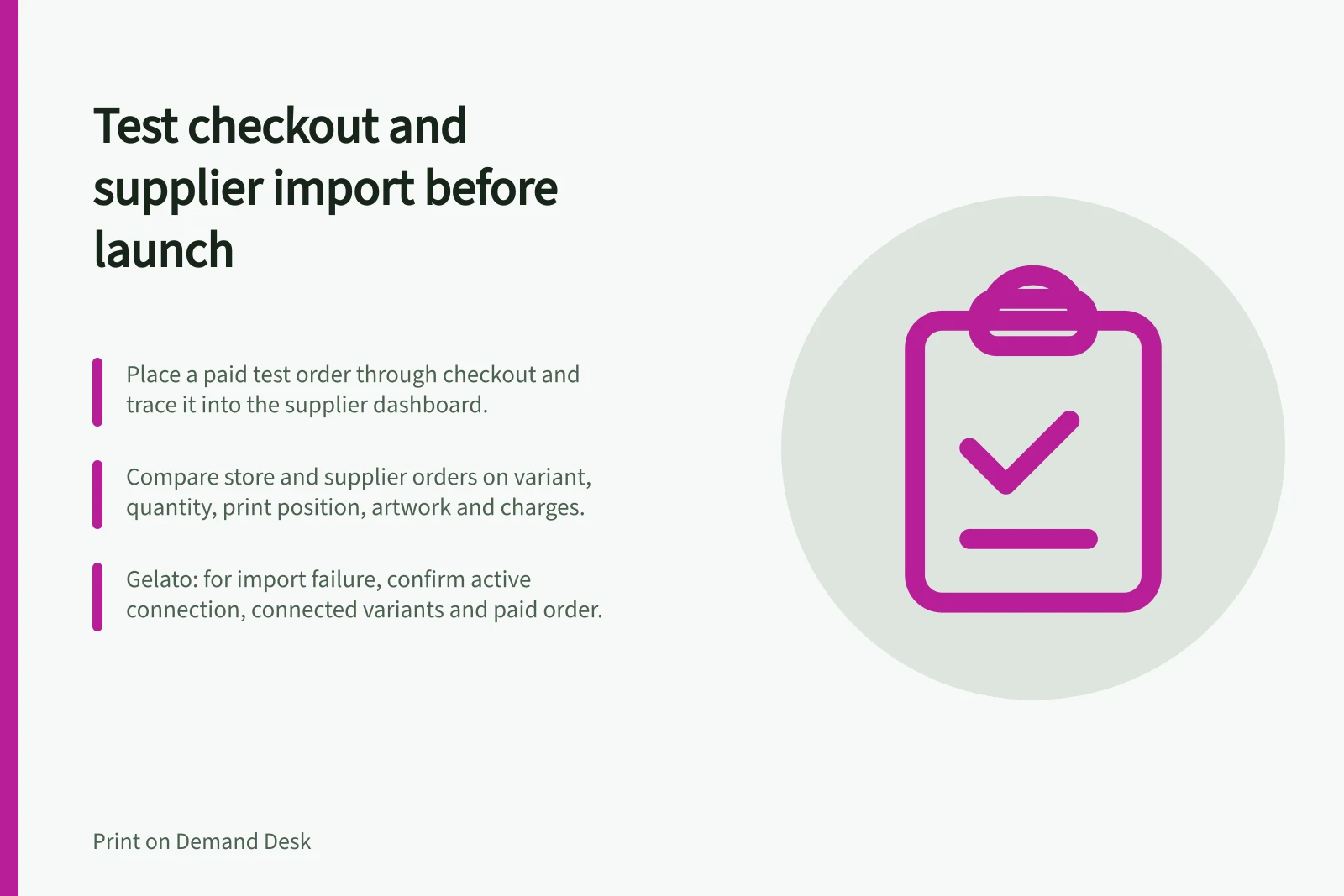
Before you open a POD store to customers, place a controlled order through the checkout they will use and trace it into the supplier dashboard. A sample ordered directly from a supplier can help assess the physical product, but it does not verify the store's checkout, payment and order-import path.
Prepare a recognisable order
Choose a product and variant intended for launch. Record the listing, selected size or colour, artwork version, delivery address and supplier approval setting. Check the checkout amount before placing a paid test order. Use a delivery option available to the customers you intend to serve.
Decide how far the test needs to go. You can inspect a pending order without releasing it, provided the integration creates that state. To verify the normal paid submission route, use the actual payment and approval conditions for that channel. Identify the order internally so staff can follow its outcome.
Controlled order test flow
- Choose a launch product and variantRecord listing, size or colour, artwork version, delivery address and supplier approval setting
- Place a controlled order through the store checkoutUse the payment and approval conditions customers will see
- Find and compare the supplier orderCheck import, item, file, release status, charges and messages
- Record the result and repeat if neededCorrect any mismatch before opening to the public
Follow it through both systems
Complete checkout and keep the store order number. Check the selected variant, delivery charge and final total. Then find the supplier order and compare:
| Checkpoint | What to confirm |
|---|---|
| Import | The supplier order corresponds to the store order, or the supplier gives a reason it has not imported. |
| Item | Product, variant, quantity and print position match. |
| File | The correct artwork version is attached to this order. |
| Release | The order has the expected draft, hold or production status under the chosen setting. |
| Charges and messages | Supplier charge and customer-facing confirmation match the intended order path. |
Keep a record of the result and any mismatch. A successful import for one variant does not validate every size, colour or supplier in the range.
Supplier order import checkpoints
- ImportSupplier order corresponds to the store order, or a reason is given for no import
- ItemProduct, variant, quantity and print position match
- FileCorrect artwork version is attached to this order
- ReleaseOrder has the expected draft, hold or production status
- Charges and messagesSupplier charge and customer-facing confirmation match the intended order path
Interpret a missing order carefully
Import conditions differ by service and channel. Check the supplier's documentation for the requirements that apply to your store and order.
Gelato asks merchants to confirm an active connection, connected variants and a paid store order when import fails.
Check the supplier's documented import period before treating an absent order as a failure. Then inspect payment and fulfilment status, connection and variant linking. Do not submit a manual replacement until you have checked whether the original order may still import.
If the wrong variant or file appears, prevent release where the configured workflow allows it, correct the affected mapping or order, and repeat the controlled check.
The launch decision is whether the intended customer route creates the intended supplier order with a known production-release state.